|
Size: 14151
Comment:
|
Size: 14210
Comment: converted to 1.6 markup
|
| Deletions are marked like this. | Additions are marked like this. |
| Line 1: | Line 1: |
| [[TableOfContents([2])]] | <<TableOfContents([2])>> |
| Line 23: | Line 23: |
| Narrative version of ["OxCLIC_expanded_workflow"] | Narrative version of [[OxCLIC_expanded_workflow]] |
| Line 28: | Line 28: |
| 1. Scan the slides at 2,400 [http://en.wikipedia.org/wiki/Dots_per_inch DPI] [Which scanner will they be using?] 1. Follow good practice for image capture and optimisation (if necessary), guides available [http://www.tasi.ac.uk/advice/creating/img_capt.html here] and [http://www.tasi.ac.uk/advice/creating/slides.html here]. |
1. Scan the slides at 2,400 [[http://en.wikipedia.org/wiki/Dots_per_inch|DPI]] [Which scanner will they be using?] 1. Follow good practice for image capture and optimisation (if necessary), guides available [[http://www.tasi.ac.uk/advice/creating/img_capt.html|here]] and [[http://www.tasi.ac.uk/advice/creating/slides.html|here]]. |
| Line 32: | Line 32: |
| 1. Use the appropriate file naming conventions ["OxCLIC filenames"] (for example, arth_aa0001a). | 1. Use the appropriate file naming conventions [[OxCLIC_filenames]] (for example, arth_aa0001a). |
| Line 40: | Line 40: |
| 1. Using Adobe PhotoShop (or the desired batch resizing & renaming software) run four sucessive [http://www.corporatemedianews.com/2002/04_apr/tutorials/psbatch.htm batch processes], each time beginning with the archival TIFF, creating: | 1. Using Adobe PhotoShop (or the desired batch resizing & renaming software) run four sucessive [[http://www.corporatemedianews.com/2002/04_apr/tutorials/psbatch.htm|batch processes]], each time beginning with the archival TIFF, creating: |
| Line 45: | Line 45: |
| 1. Ensure that all of the created digital images follow the established [:OxCLIC filenames|file naming conventions:OxCLIC_filenames|file naming conventions] and are all saved in the correct folder. | 1. Ensure that all of the created digital images follow the established [[OxCLIC filenames|file naming conventions|OxCLIC_filenames|file naming conventions]] and are all saved in the correct folder. |
| Line 47: | Line 47: |
| attachment:OxCLICbatchrename.png | {{attachment:OxCLICbatchrename.png}} |
| Line 53: | Line 53: |
| 1. Create a blank Portfolio catalogue template (or download the prepared template file from ["OxCLIC portfolio"]. | 1. Create a blank Portfolio catalogue template (or download the prepared template file from [[OxCLIC portfolio]]. |
| Line 55: | Line 55: |
| 1. All custom fields must follow the stated metadata schemes, see ["OxCLIC portfolio"]. | 1. All custom fields must follow the stated metadata schemes, see [[OxCLIC portfolio]]. |
| Line 59: | Line 59: |
| attachment:OxCLIC_asprop.jpg | {{attachment:OxCLIC_asprop.jpg}} |
| Line 67: | Line 67: |
| * Export the catalogue from the Portfolio system, see ["OxCLIC MDIDimporting"]. * Open the exported text file and edit field names as required, see ["OxCLIC MDIDimporting"]. |
* Export the catalogue from the Portfolio system, see [[OxCLIC_MDIDimporting]]. * Open the exported text file and edit field names as required, see [[OxCLIC_MDIDimporting]]. |
| Line 70: | Line 70: |
| * Import the collection catalogue information into MDID, see ["OxCLIC MDIDimporting"]. | * Import the collection catalogue information into MDID, see [[OxCLIC_MDIDimporting]]. |
| Line 72: | Line 72: |
| 1. Import the presentation JPEG digital images into MDID, see ["OxCLIC MDIDimporting"]. | 1. Import the presentation JPEG digital images into MDID, see [[OxCLIC_MDIDimporting]]. |
| Line 81: | Line 81: |
| attachment:OxCLIC_Oxford_model.jpg | {{attachment:OxCLIC_Oxford_model.jpg}} |
| Line 90: | Line 90: |
| attachment:OxCLIC_workflow_draft.jpg attachment:OxCLIC_workflow_folders.jpg |
{{attachment:OxCLIC_workflow_draft.jpg}} {{attachment:OxCLIC_workflow_folders.jpg}} |
| Line 96: | Line 96: |
| A definite need to adopt a file naming convention was identified for ease of cataloguing, sustainability of images and ease of management. Giving each image a unique identification allows the entire collection catalogue to be exported to different systems and run alongside other collections without the problem of multiple images of the same name. Each department would be given a unique alphabetical abbreviation (to differentiate the origin of collections and ensure no confusion of where images belong, based on an established University code [http://www.oucs.ox.ac.uk/network/wins/unitcodes/index.xml.ID=name]) followed by a common convention to distinguish between multiple collections (an arbitrary alphabetical code allowing for 676 unique projects per department). A similar scheme to the Oxford Digital Library was suggested. | A definite need to adopt a file naming convention was identified for ease of cataloguing, sustainability of images and ease of management. Giving each image a unique identification allows the entire collection catalogue to be exported to different systems and run alongside other collections without the problem of multiple images of the same name. Each department would be given a unique alphabetical abbreviation (to differentiate the origin of collections and ensure no confusion of where images belong, based on an established University code [[http://www.oucs.ox.ac.uk/network/wins/unitcodes/index.xml.ID=name]]) followed by a common convention to distinguish between multiple collections (an arbitrary alphabetical code allowing for 676 unique projects per department). A similar scheme to the Oxford Digital Library was suggested. |
| Line 134: | Line 134: |
| attachment:OxCLIC_cata.jpg | {{attachment:OxCLIC_cata.jpg}} |
| Line 169: | Line 169: |
| attachment:OxCLIC_mdid1.jpg attachment:OxCLIC_mdid2.jpg |
{{attachment:OxCLIC_mdid1.jpg}} {{attachment:OxCLIC_mdid2.jpg}} |
| Line 179: | Line 179: |
| attachment:OxCLIC_mdid3.jpg | {{attachment:OxCLIC_mdid3.jpg}} |
| Line 183: | Line 183: |
| attachment:OxCLIC_mdid4.jpg | {{attachment:OxCLIC_mdid4.jpg}} |
| Line 187: | Line 187: |
| attachment:OxCLIC_mdid5.jpg | {{attachment:OxCLIC_mdid5.jpg}} |
| Line 190: | Line 190: |
| attachment::OxCLIC_mdid6.jpg | {{attachment::OxCLIC_mdid6.jpg}} |
<<TableOfContents: execution failed [Argument "maxdepth" must be an integer value, not "[2]"] (see also the log)>>
OxCLIC Overview
Introduction
OxCLIC is an ongoing image management project concerned with the practical use of digital images in teaching within the University of Oxford, focusing on slide collections held by the Department of the History of Art and the faculties of Classics, Archaeology and Oriental Studies.
The system will incorporate mechanisms for image management, search and retrieval across multiple collections. The system will store images and their metadata in a number of implementations distributed across departments. Furthermore, the chosen delivery system will allow dynamic presentation in the classroom.
- Currently the project is preparing local collections for inclusion in the system, together with digitisation of existing slides as required, and installing and testing the developed systems with slide collections and catalogue information from History of Art, Classics, Archaeology, Oriental Studies, Chemistry, and OUCS.
The project has been:
- Researching suitable software systems.
- Gathering user requirements across departments.
- Selecting suitable test systems.
- Refining the chosen systems as necessary to fulfil local requirements.
- Establishing guidelines through the definition of workflows for adding content to local systems at adequate quality and with useful metadata.
Overview
Narrative version of OxCLIC_expanded_workflow
Scanning
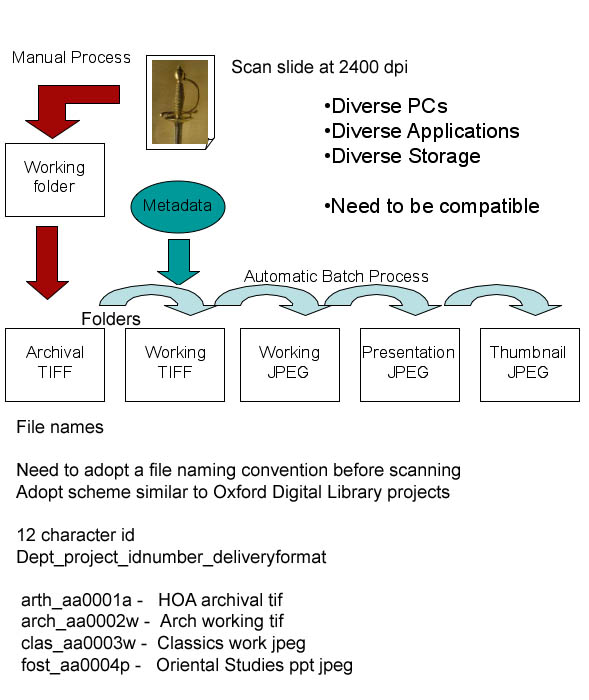
Scan the slides
The slides need to be scanned, tweaked and/or cropped and then batch processed to create derivative images
Scan the slides at 2,400 DPI [Which scanner will they be using?]
Follow good practice for image capture and optimisation (if necessary), guides available here and here.
- Once happy with the digital image (cropped, optimised etc.) save in a lossless high quality TIFF format that will be used as the master archival image.
- Save all the images to one folder.
Use the appropriate file naming conventions OxCLIC_filenames (for example, arth_aa0001a).
- Repeat this process until a limited batch of TIFFs is reached (10 [?] slides is suggested).
- Create four new folders at the same level as the Master Archival TIFF folder
- Working TIFF,
- Working JPEG,
- Presentation JPEG,
- Thumbnail JPEG
Resizing
Using Adobe PhotoShop (or the desired batch resizing & renaming software) run four sucessive batch processes, each time beginning with the archival TIFF, creating:
- A working TIFF - 3,000 pixel (width) with LZW compression, small c.f. the archival TIFF.
- A working JPEG - 3,000 pixel width.
- A presentation JPEG - 1,000 pixel width.
- A thumbnail JPEG - 200 pixel width.
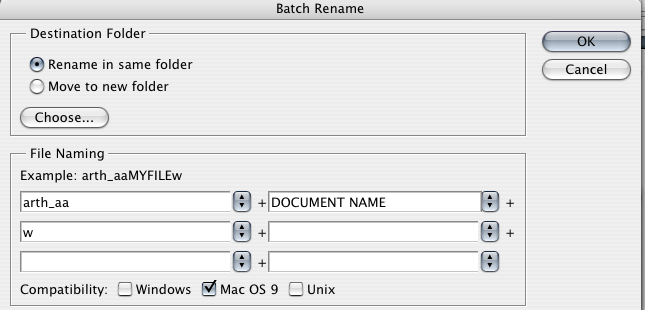
- Ensure that all of the created digital images follow the established [[OxCLIC filenames|file naming conventions|OxCLIC_filenames|file naming conventions]] and are all saved in the correct folder.
- Repeat this process as required.
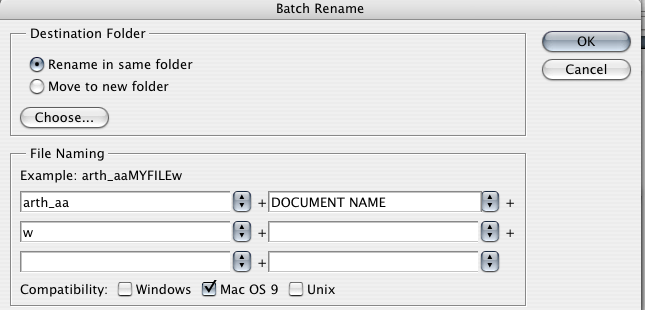
Batch Rename in PhotoShop.
Cataloguing
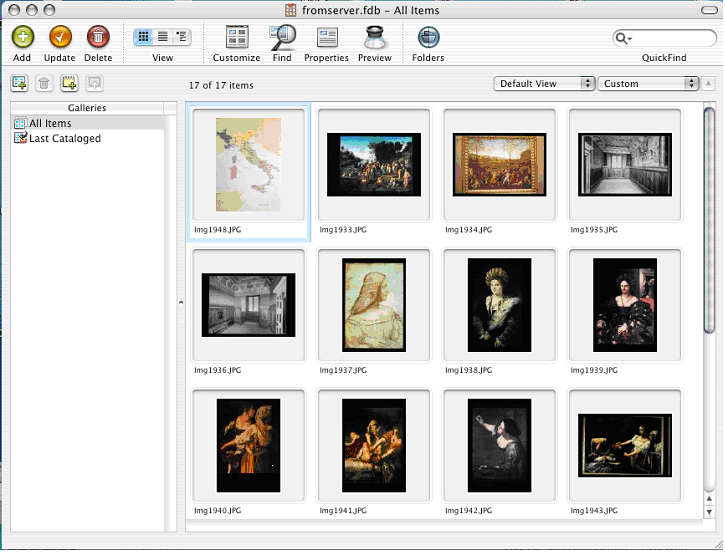
Cataloguing the batch of digital images using the Portfolio software
Create a blank Portfolio catalogue template (or download the prepared template file from OxCLIC portfolio.
- Customise the metadata fields to include those relevant to the collection (the downloadable template includes VRA fields relevant to the History of Art).
All custom fields must follow the stated metadata schemes, see OxCLIC portfolio.
- Add the presentation JPEGs only into Portfolio, while also considering which metadata fields are likely to be identical across the entire collection (or selection of slides).
- When adding images input this data using the 'Assign Properties... to Added Items' option. This greatly reduces most redundency in the data entry.
- Repeat this process as required
 The 'Assign Properties' dialog box in Portfolio.
Importing the Catalogue and the images
Import the Catalogue
Although MDID can import individual images which can then be catalogued within MDID this is not a sensible way for large collections to be imported. MDID has a batch import helper application that allows large groups of images to be imported directly via the server. At regular periods, perhaps termly or annually the digitised and catalogued material will need to be imported into the MDID web server application.
- The catalogue information needs to be exported from Portfolio and imported into the MDID application and the associated images need to be moved into the correct corresponding folders on the MDID server.
Export the catalogue from the Portfolio system, see OxCLIC_MDIDimporting.
Open the exported text file and edit field names as required, see OxCLIC_MDIDimporting.
- Move the CSV (comma seperated variable) file to the MDID server,
Import the collection catalogue information into MDID, see OxCLIC_MDIDimporting.
Moving the images
Import the presentation JPEG digital images into MDID, see OxCLIC_MDIDimporting.
Testing the MDID collection
- Test all fields from the catalogue are in MDID by checking the Search options for the collection
- Hide from the Search field any fields that you may not wish to be seen to the general browser via the Collection Setup preferences
OxCLIC Model
OxCLIC presumes that there will be departmental or divisional instances of any image server and staff and students will enter these systems using the Oxford Single Sign-On system. Ideally the system, will allow cross-searching by and to the other instances.
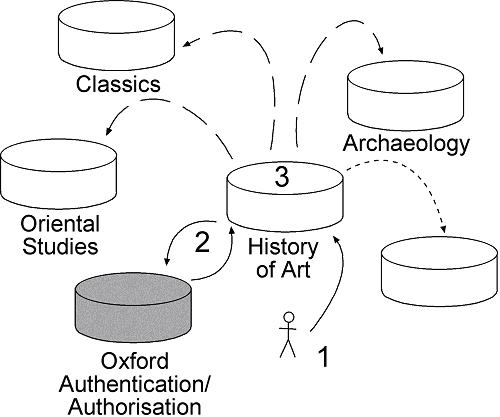
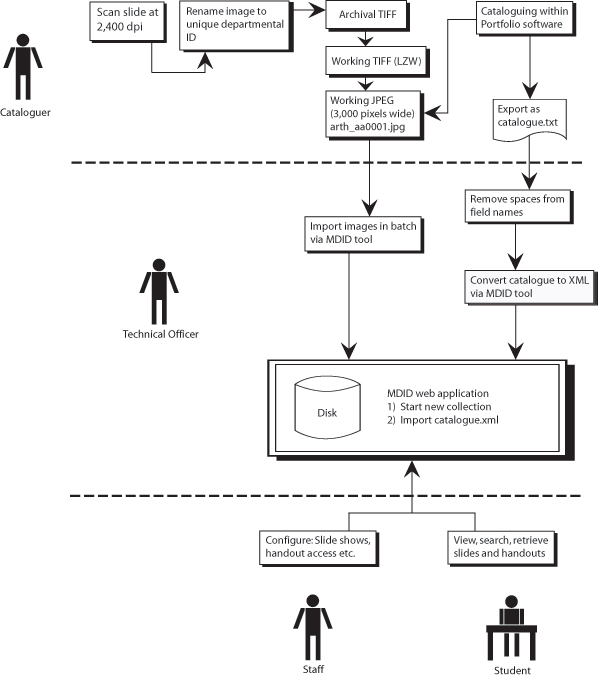
OxCLIC Workflow
The image submission workflow can be broken into three stages
- Catalogue stage
- Importing of catalogue and material to Server
- Students and Stff accessing and anotating the material
File Names
A definite need to adopt a file naming convention was identified for ease of cataloguing, sustainability of images and ease of management. Giving each image a unique identification allows the entire collection catalogue to be exported to different systems and run alongside other collections without the problem of multiple images of the same name. Each department would be given a unique alphabetical abbreviation (to differentiate the origin of collections and ensure no confusion of where images belong, based on an established University code http://www.oucs.ox.ac.uk/network/wins/unitcodes/index.xml.ID=name) followed by a common convention to distinguish between multiple collections (an arbitrary alphabetical code allowing for 676 unique projects per department). A similar scheme to the Oxford Digital Library was suggested.
Dept_project_idnumber_deliveryformat (12 character ID)
- arth_aa0001a – History of Art archival TIFF (from the first collection)
- arth_ab0001a – History of Art archival TIFF (from the second collection)
- arth_ba0001a – History of Art archival TIFF (from the twenty-seventh collection)
- arch_aa0002w - Archaeology working TIFF
- clas_aa0003w - Classics work JPEG
- fost_aa0004p - Oriental Studies presentation JPEG
It is good practice to use underscores instead of spaces and avoid odd characters that are not universally supported.
Metadata
The adoption of a clear base metadata convention across the collections is needed to make cross platform indexing possible, to interact with similar collections and to contain a standardised set of useful contextual data for the digital image.
Metadata improves the management and retrieval of data, allowing for cross-searching and re-use across multiple departments, institutions and systems.
The OxCLIC project proposes to develop a custom scheme (Title, Summary, Description) based upon user requirements that are compatible with;
- Dublin Core 15 Fields (Title, Subject, Creator, Description, Id etc.) - A simplistic set of metadata terms that are adequate for describing digital resources. We will be exposing information about images in the OXCLIC system as Dublin Core compatable data as it is the most commonly used metadata standard.
- VRA - a set of metadata terms specifically designed for describing images and works of art. A VRA record is divided into a description of a work (that is, an object, person or place) and an image (a slide, photo or a digital image that is a representation of a work).
The project has also explored the MODS and MARC schemas for using metadata.
Using a recommended cataloguing system (Extensis Portfolio) the user can add fields (department, copyright, etc.) automatically to reduce redundancy and streamline data entry of collections. The cataloguing system also allows the creation of custom metadata fields (inputting the common VRA fields for example) for individual collections needs, which can also be saved as a template file to ensure all collection entries use the correct fields.
Cataloguing Stage
It was vital to identify a suitable offline cataloguing system; Extensis Portfolio 8 (http://www.extensis.com/en/products/asset_management/) was suggested as a suitable system because its use in three of the departments is sustainable and is itself valuable at the department level.
Portfolio is a mature image database system that has an extensive development history and is used as an image management system by a large proportion of commercial and educational bodies.
Individual or multiple images can be inputted into the database, along with the insertion of preset metadata within this process. Furthermore, metadata can be individually or collectively edited once the images are within the database.
The completed metadata can be exported into a common file format (containing the data for the image based upon its unique filename) which can then be imported into the delivery system.
Delivery Stage
Testing online systems that are suitable for a devolved model of supporting staff and students and also offer image related teaching activities is a primary component of the project.
The MDID (Madison Digital Image Database, http://mdid.org/) software was chosen for the online pilot element of the project because it is a fairly mature system that is already used by educational institutions within the United States that have broadly the same requirements as the project’s users.
Among an assortment of features, MDID allows administrative management, devolved groups, student vs. staff views and teaching functionality. There is also an active support and development community.
The toolset includes:
- Incorporation of remote collections.
- Uploading of personal images.
- Support for multiple collections.
- Search and browse functions.
- Cross-collection searching.
- Personal/private collections by users in “My Images”.
- Custom catalogue data structures.
ImageViewer classroom application.
- Slideshow light table.
- User image notes and annotations.
- Web-based slideshow viewer.
- Organisation of images into albums/lightbox.
- Printable flashcards and supporting Adobe Acrobat PDF files.
MDID
Tools & Presentation
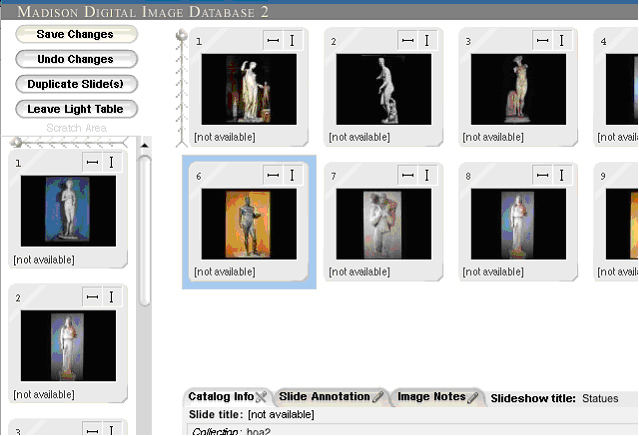
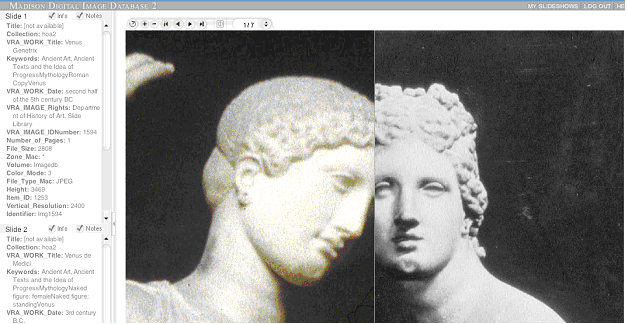
MDID includes a variety of useful tools for teaching with images, e.g. a ‘Lightbox’ to arrange sets of images for slideshows with notes etc.
The online slideshow presentations include features for zooming, image comparisons and the creation of Adobe Acrobat PDF notes for students. The presentation can also be downloaded to a local computer for display offline (currently through downloadable accompanying viewer software).
Administration
- Image sets can be personalised and saved for research and teaching.
- Users can browse multiple collections within the local server or even access external collections (where permissions have been granted).
- Users can search across metadata in multiple collections.
- MDID includes fine grained access rights for different types of user.
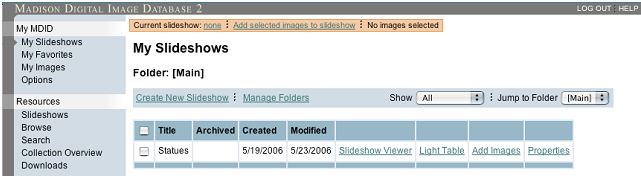
Managing image sets
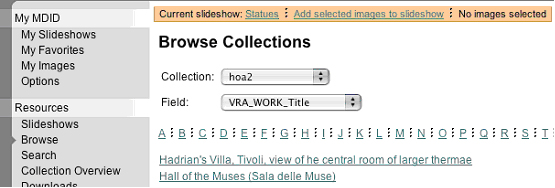
Browing collections in the database
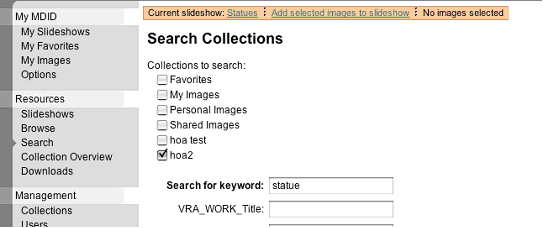 Searching collections
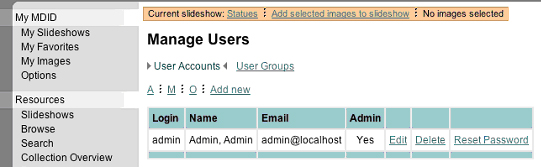
Managing users and their permissions
Image Storage Requirements
It is important to realise the storage requirements of the multiple online collections to plan in advance the hardware necessary to support the long-term preservation and archival of the digital images. The manipulation and delivery of images requires more working storage than just the base file size of the images.
File Type |
Per Image |
2,000 Images |
Working Space |
5,000 px Archival TIFF |
50 MB |
100 GB |
200 GB |
3,000 px Working TIFF (LZW) |
10 MB |
20 GB |
40 GB |
3,000 px Working JPEG |
1.6 MB |
3.2 GB |
6.4 GB |
1,000 px Presentation JPEG |
0.5 MB |
1 GB |
2 GB |
200 px Thumbnail JPEG |
30 kB |
60 MB |
120 MB |
For more information on preservation, see: http://www.tasi.ac.uk/advice/delivering/digpres.html
Contact Details
OxCLIC MDID pilot 1: http://oxclic.oucs.ox.ac.uk
OxCLIC MDID pilot server 2: http://oxclic2.oucs.ox.ac.uk
OxCLIC documentation: http://www.oucs.ox.ac.uk/wiki/OxCLIC
CLIC JISC Project: http://clic.oucs.ox.ac.uk
TASI Image Support Service: http://www.tasi.ac.uk
OUCS: http://www.oucs.ox.ac.uk
All questions, comments etc. should be directed to Peter Robinson (peter.robinson@oucs.ox.ac.uk) and/or Jonathan Miller (jonathan.miller@oucs.ox.ac.uk) at Oxford University Computing Services (OUCS).
Oxford University Computing Services 13 Banbury Road Oxford OX2 6NN England Telephone: 01865 273200